Case Study
Yellow is the New Green
Transforming a fragmented, Excel-based financial planning process into an interactive dashboard that helps decision-makers understand data, recognize correlations, and make informed decisions.
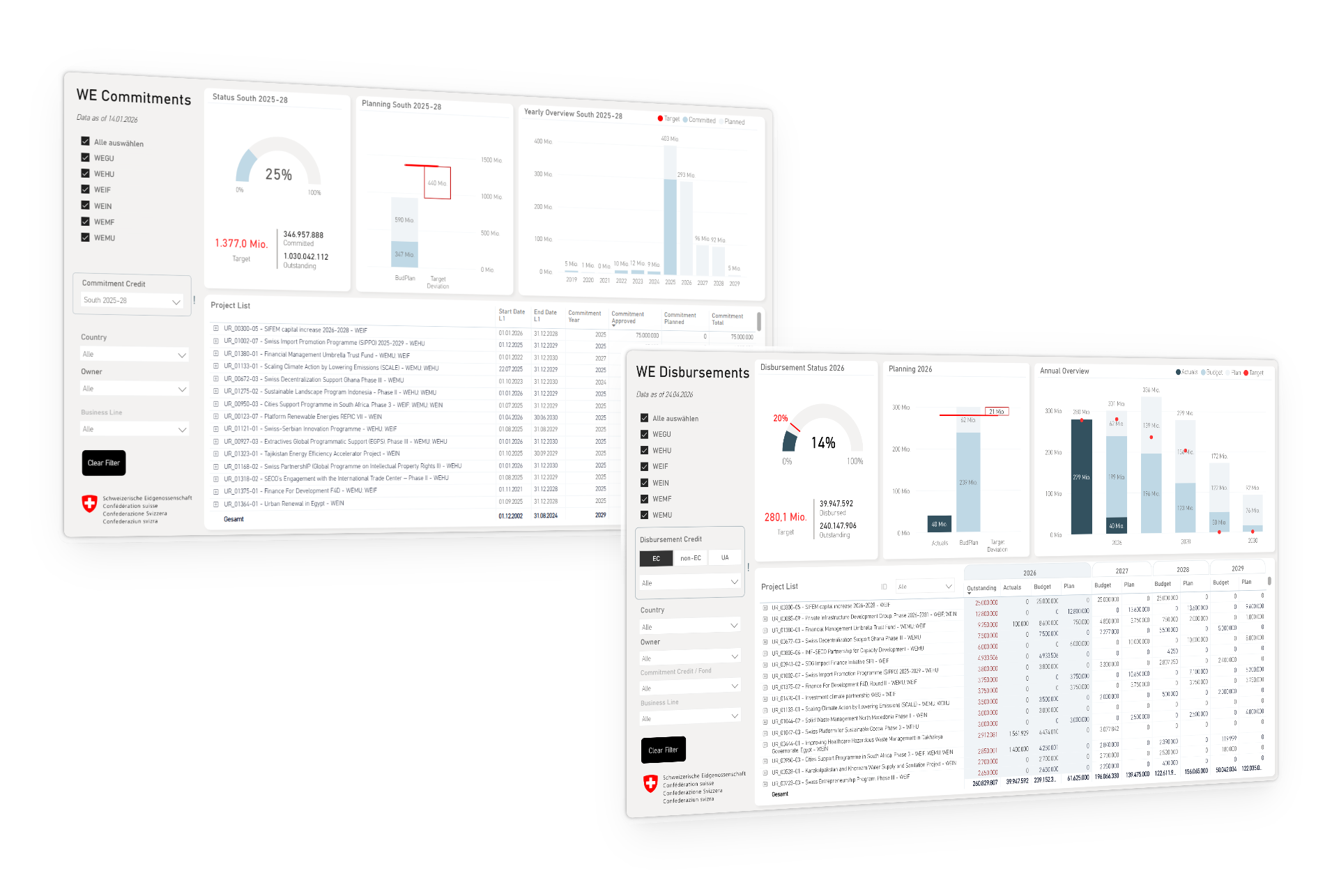
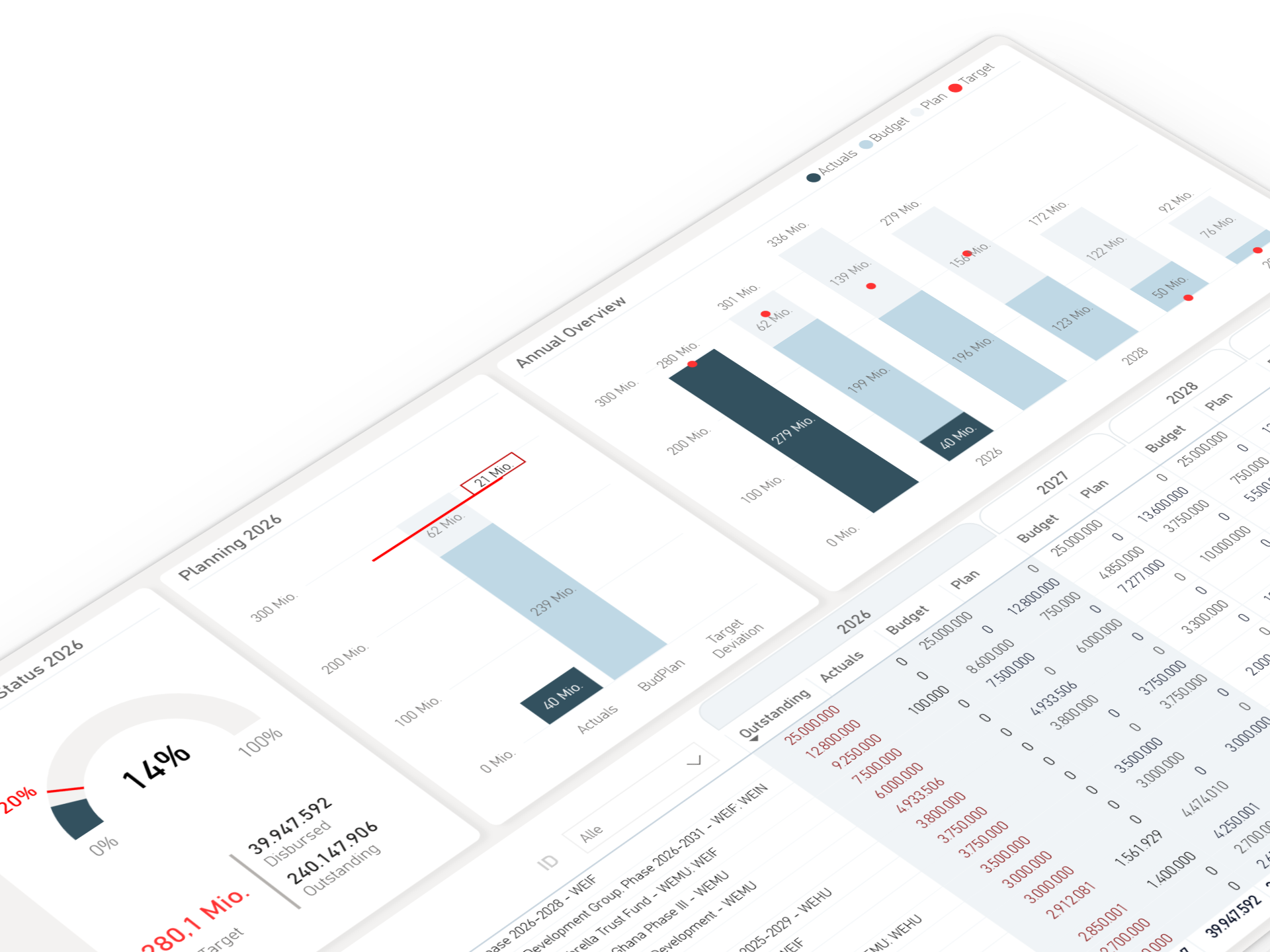
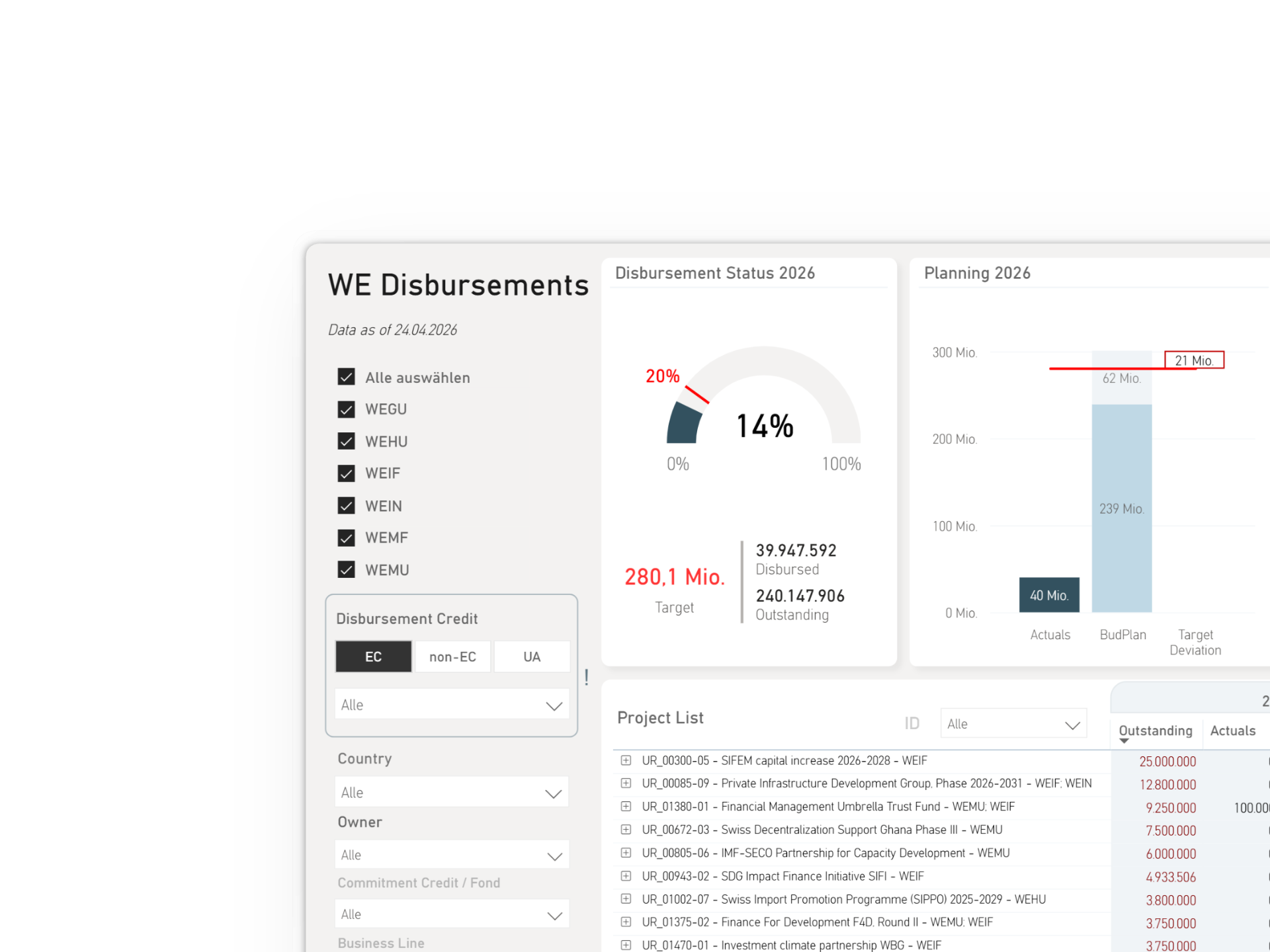
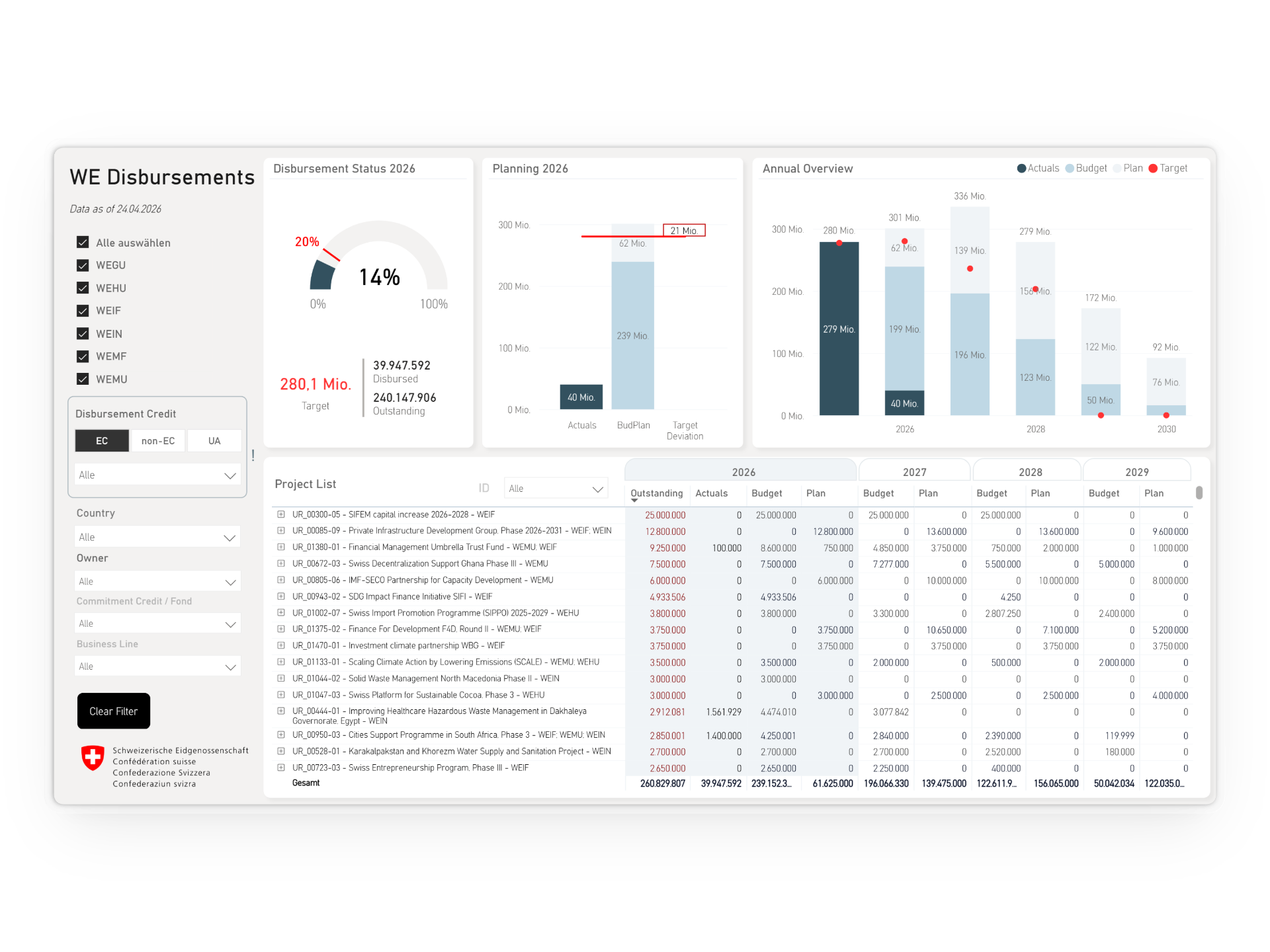
Note: To protect internal information, the illustrations and mockups have been simplified. The main dashboard mockup is entirely fictional and is intended only to convey the general type and structure of the solution.
Problem
Important decisions were slowed down by fragmented information
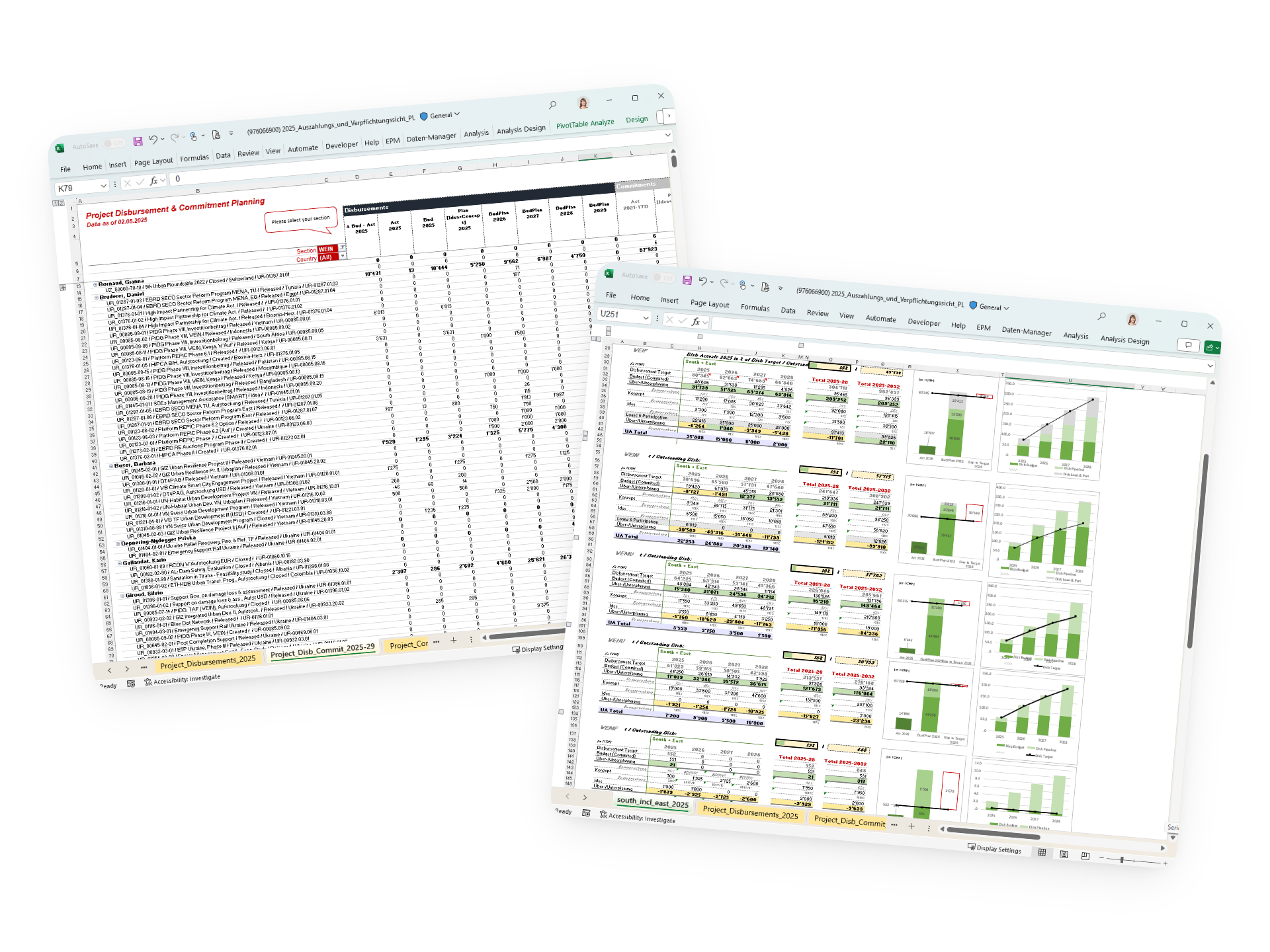
Time-consuming
Data analysts spent days preparing information before they could actually analyze and discuss it with decision-makers.
Limited exploration
Users could not easily filter, compare or drill into the data without creating additional views and calculations.
Low confidence in the data
Because information was spread across several files, users often questioned whether they were working with the most up-to-date and reliable data.
Solution
All in one
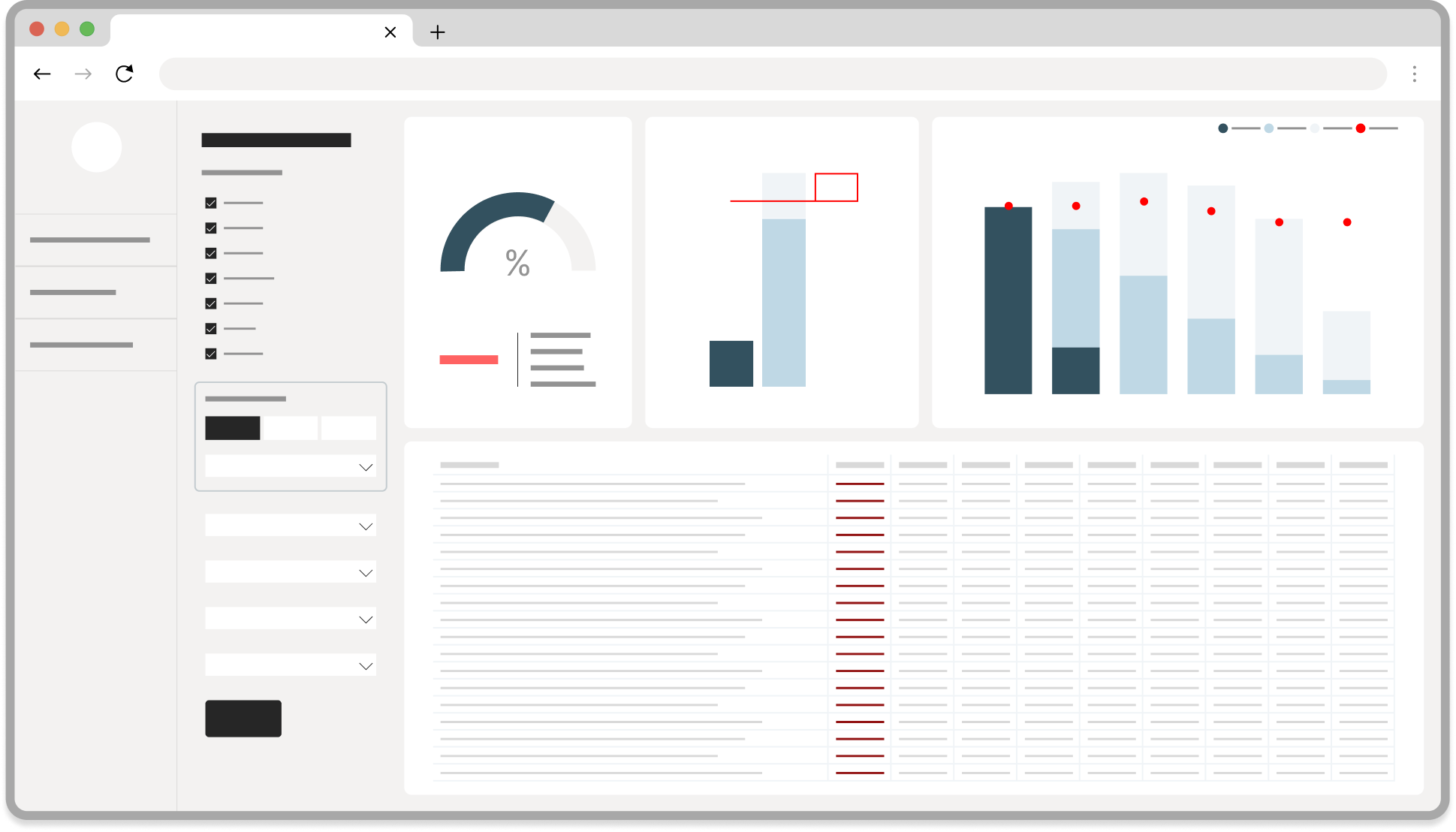
One Power BI dashboard brings all relevant information together in one place, making it accessible and usable across user groups.
One source
All relevant financial information is brought together in one dashboard instead of being spread across multiple files.
More confidence
Users can filter, compare and drill into the data directly, without creating additional views or performing manual calculations, making the information easier to understand, explain and trust.
Easier to access
A centralized, up-to-date view makes information easier to access and find, while an export function still enables users to carry out their own analysis when needed.
Acta Nova
Power BI link
up to date?
planning overview Explore
the cockpit
information
available?
to update the data
disbursements
Excel file
monitoring Excel file
mobilization Excel file
in SAP
or data analyst
Impact
From side project
to strategic tool
90%
reduction in manual
preparation work
100%
of primary users rated it as
an improvement in usability
90%
fewer recurring
clarification requests
Process
How I got there
01
Understand
Stepping into the users' shoes
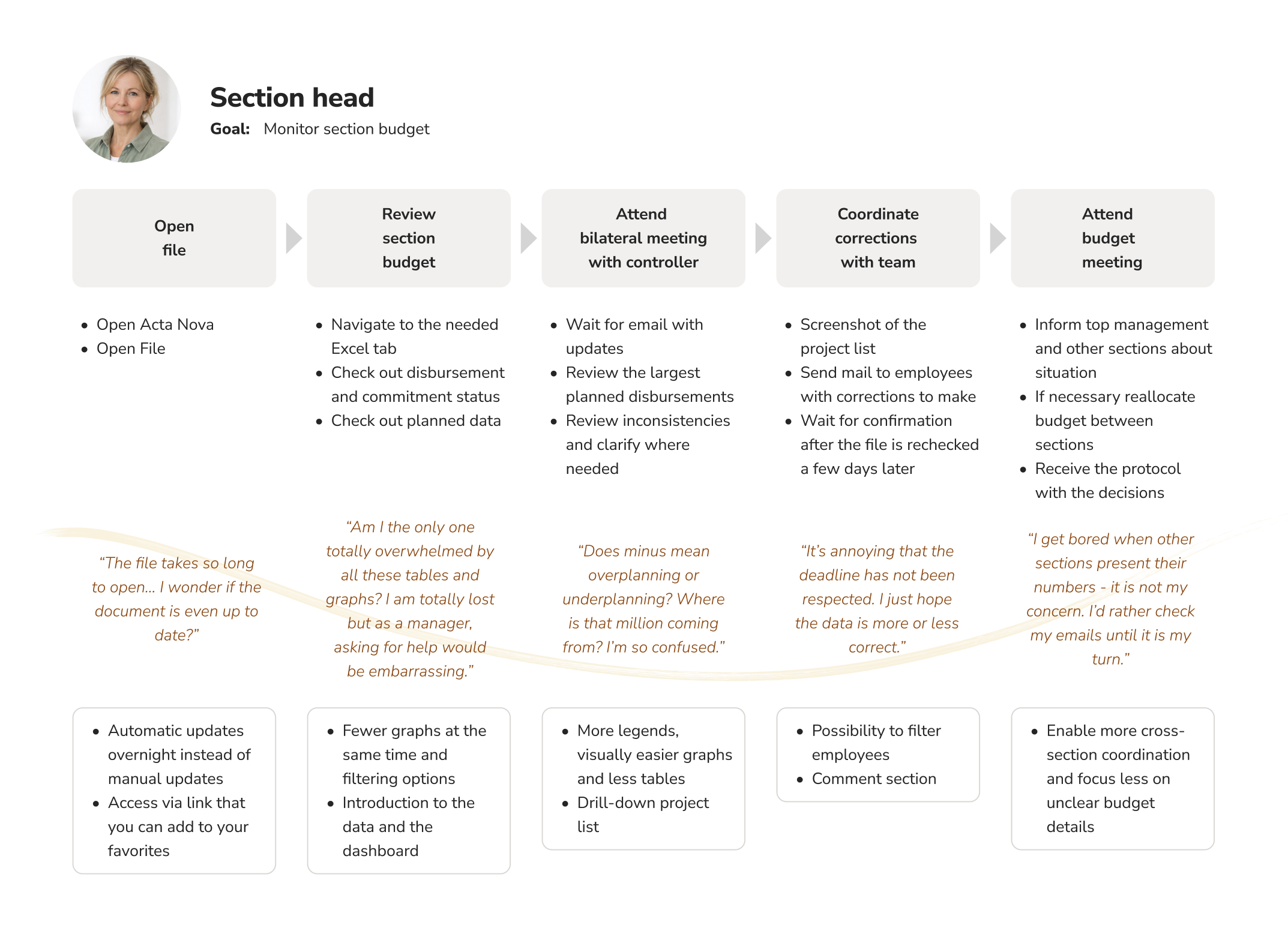
To better understand how users interacted with financial information, I conducted interviews and mapped user journeys to reveal recurring frustrations, uncover needs and define the main pain points that ultimately shaped the dashboard. Key Decision: I prioritized section heads as the primary users because they drive planning and decision-making, while ensuring the solution also remained useful for other roles.
User journey map
02
Design
Designing for clarity
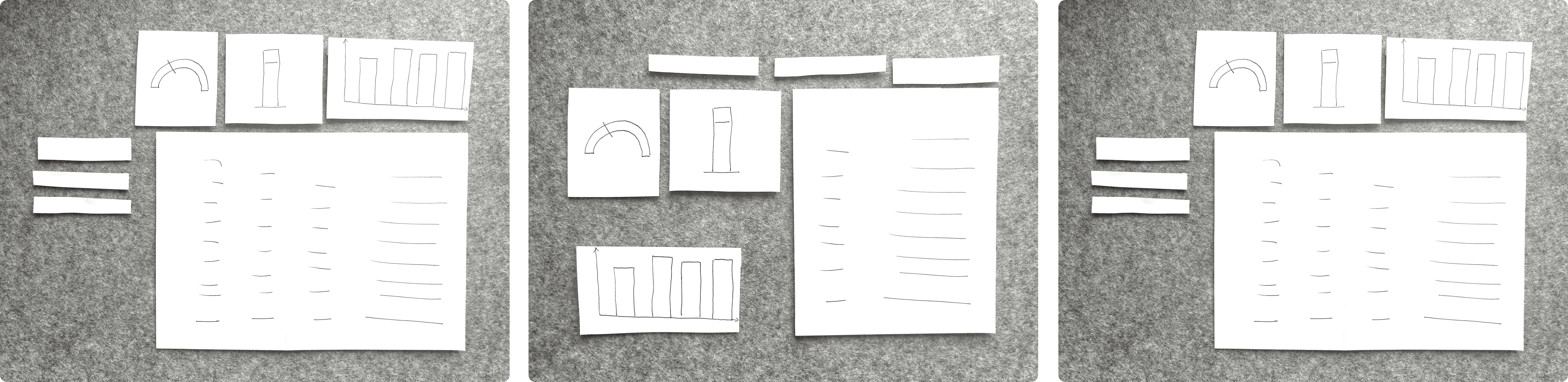
Financial data can easily feel dense and intimidating. The visual design therefore played a key role in making complex information approachable. Working within a public-sector context, I used the clean and restrained Swiss federal design system and, where elements were missing, drew inspiration from existing Swiss government dashboards. Key Decision: I organized the dashboard into multiple focused pages with a consistent layout rather than overloading a single page with information.
Using paper cutouts to explore different dashboard structures
Design decisions (hover to discover)
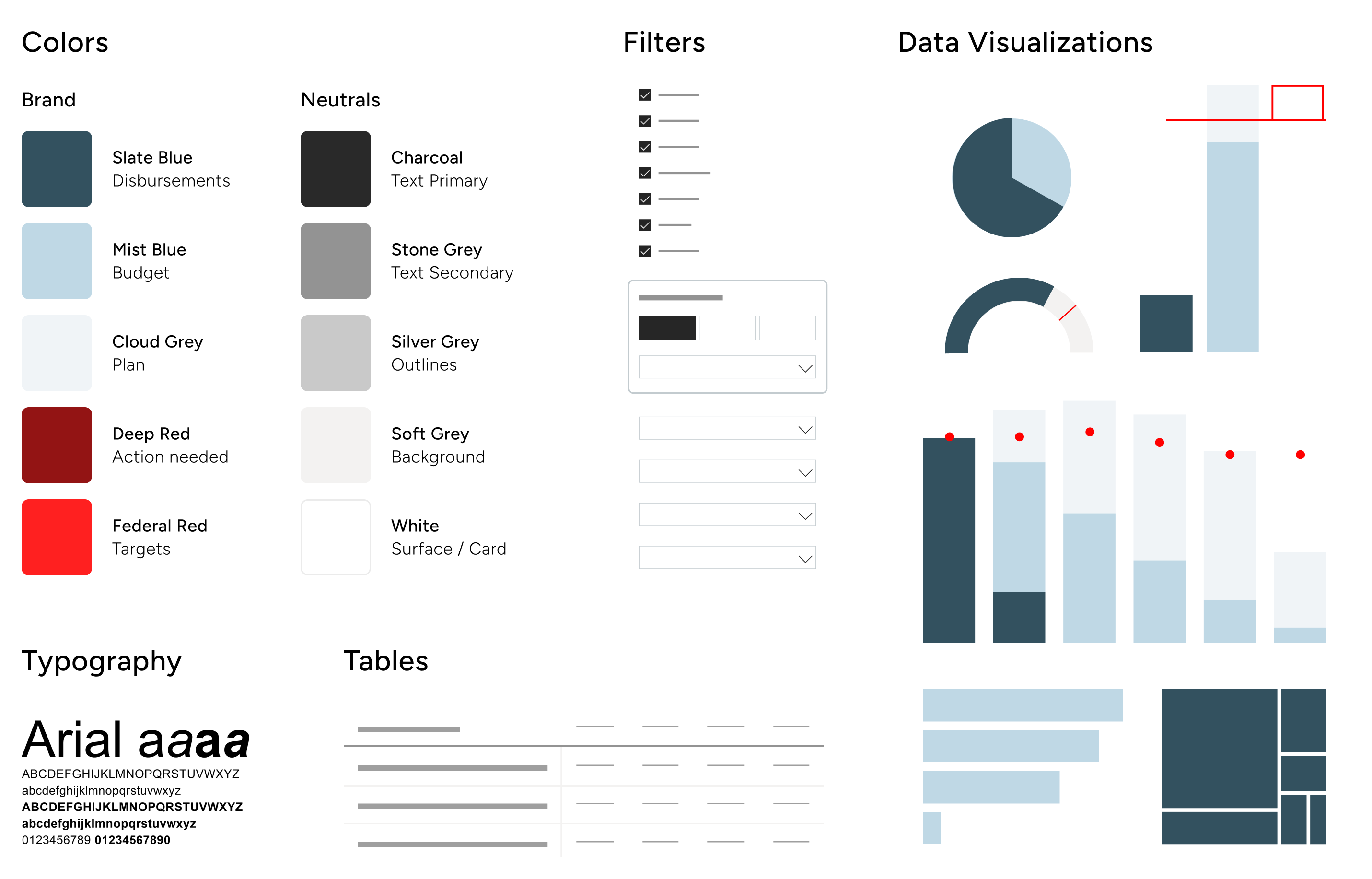
Federal color palette
The color palette draws on the existing federal design system, prioritizing more neutral colors to reduce cognitive load.
Federal typography
Typography follows the federal design guidelines, using Arial as the required typeface. Its familiarity and readability support efficient information scanning.
Filters that leave no one behind
Filters were prioritized for primary users, with the most relevant options placed prominently at the top for quick access, while secondary users could still reach the information they needed through less prominent filters positioned lower on the page and through drill-downs.
Exact figures, when needed
Tables complement the visualizations by providing precise values for users who need exact figures. They can also be exported to Excel, supporting further analysis and reporting.
Choosing the right chart
Rather than relying on a single chart type, each visualization was chosen to present the data as clearly as possible. Consistent color coding, such as slate blue for disbursements and federal red for targets, makes categories easy to recognize across charts and pages, while neutral tones reduce visual clutter.
03
Build
Learning by doing
Power BI was completely new territory for me. Through online training and hands-on experimentation, I learned the tool while building the solution alongside my regular responsibilities. Introducing a new technology also required close stakeholder communication, change management and new access and governance processes for the dashboard. Key Decision: Whenever technical constraints made an idea unworkable, I returned to the underlying user need and looked for a feasible alternative.
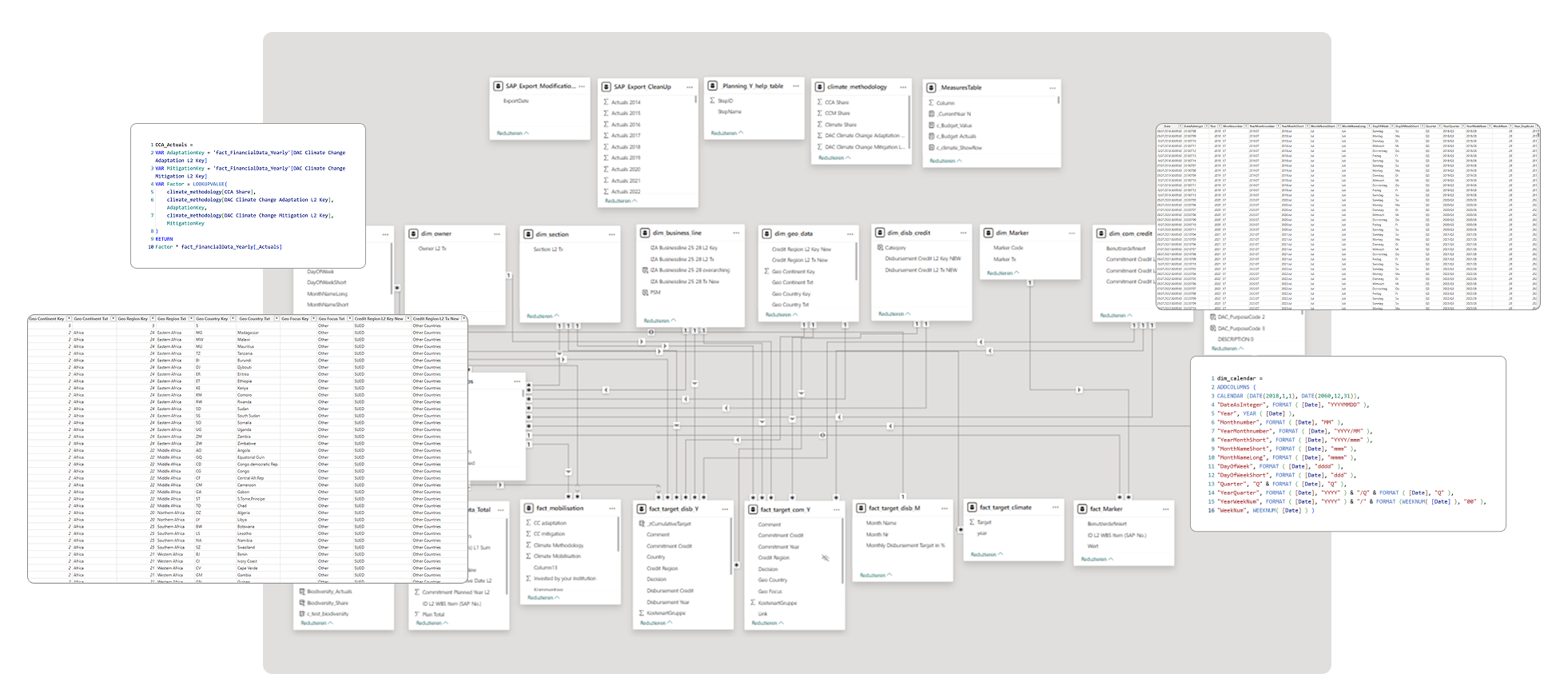
Data model in Power BI
04
Test
Does it actually work?
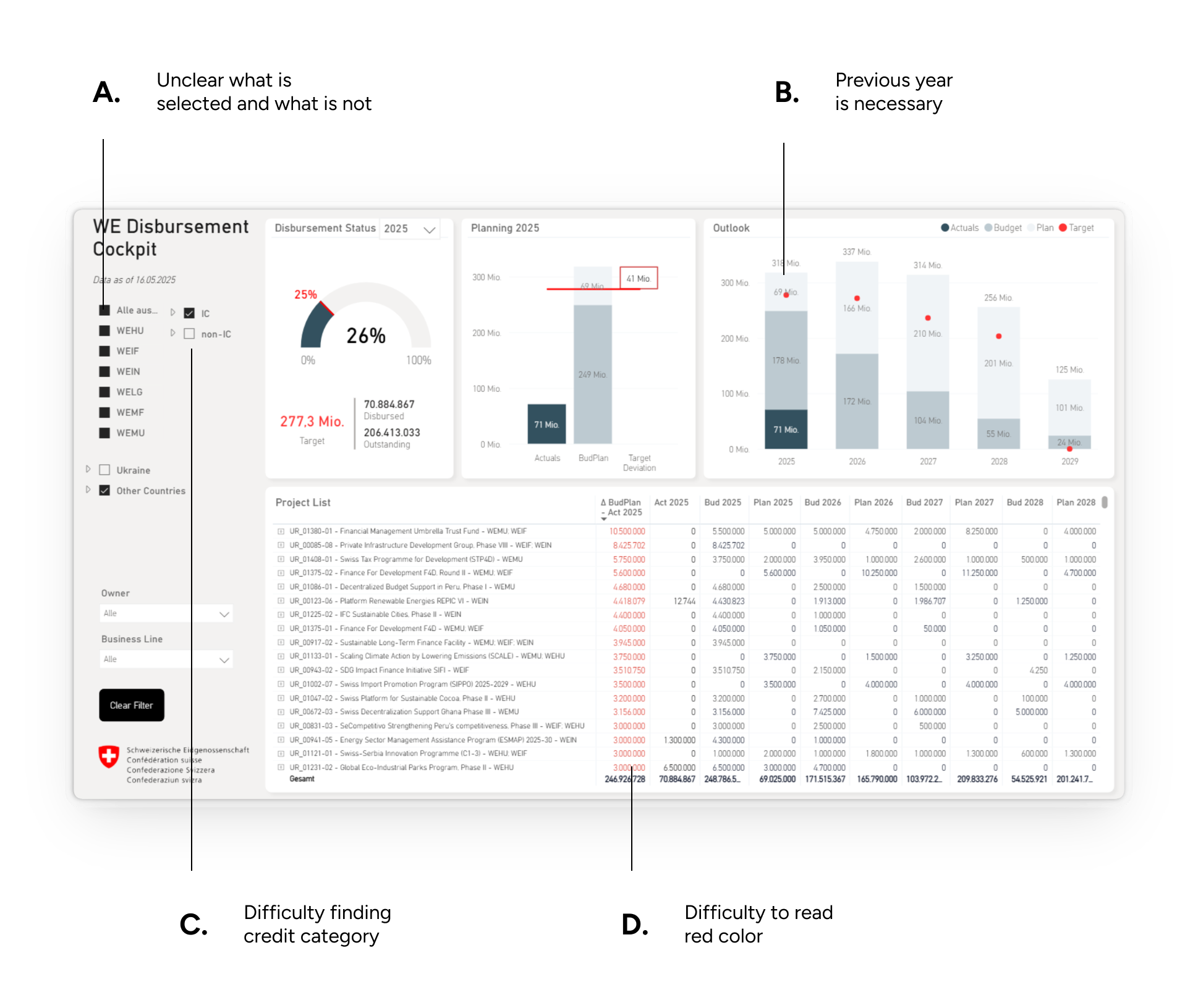
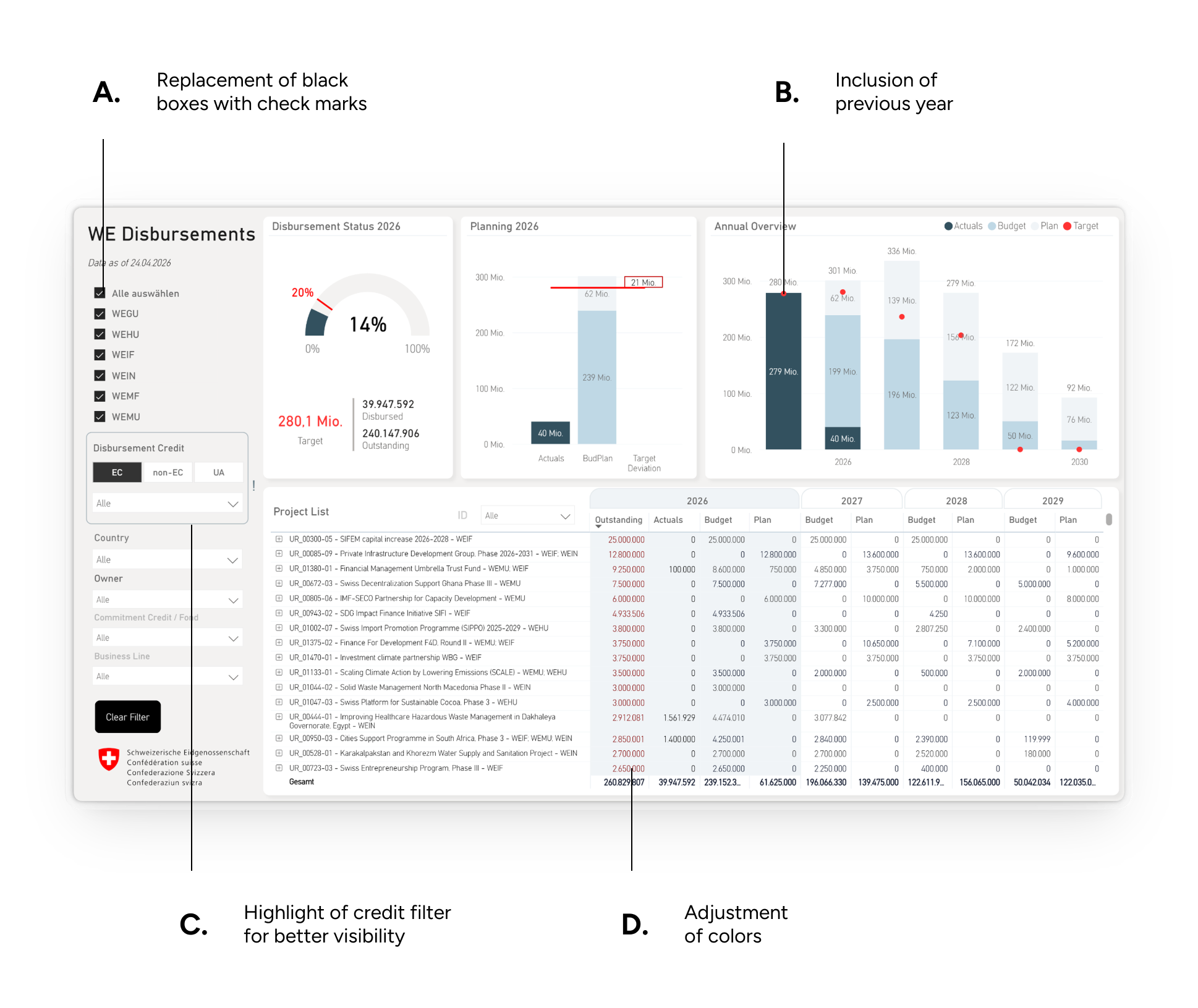
A moderated usability study with three users identified areas for improvement before launch. Four months later, a voluntary questionnaire was distributed to all primary users to evaluate adoption, usability and satisfaction. The response rate was 83%, and the results confirmed strong acceptance of the new dashboard and way of working. Key Decision: Given the strong level of acceptance, we decided to phase out the old tools and stop maintaining them.
Iterations
Questionnaire Results
Unanimously positive feedback
83%
response rate.
100%
found the dashboard
more efficient to use.
100%
rated it as an improvement
in usability.
05
Evolve
Built to evolve
Since launch, the dashboard has served as the division's sole tool for planning and monitoring its annual budget of over CHF 400 million. Not a single user has asked for any of the old Excel files. The dashboard has also continued to evolve: new overviews have addressed additional user needs and made everyday work easier, while enabling analyses that had not previously been possible.
Additional pages for monitoring climate disbursements
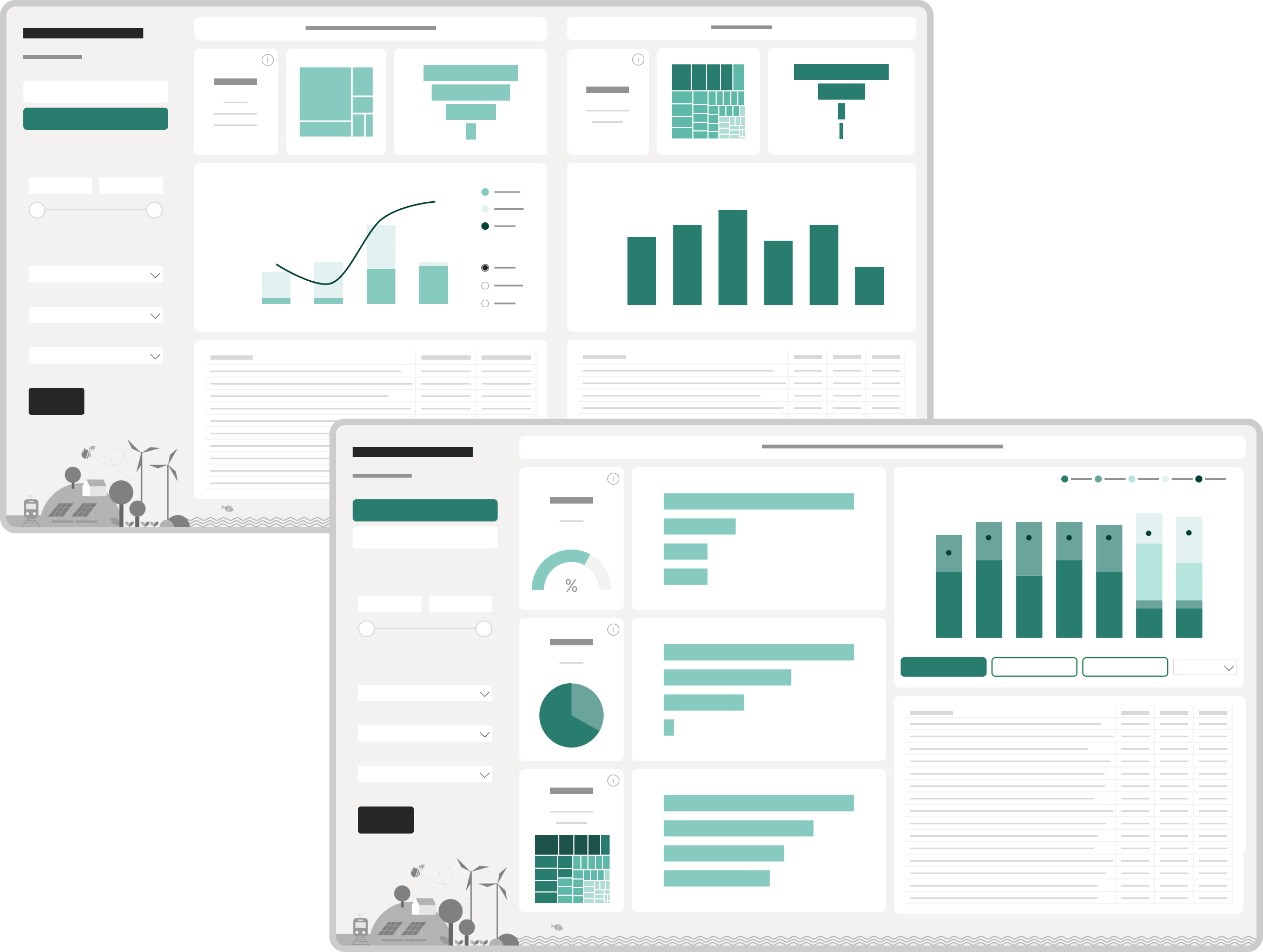
The Final Product
The Future is Yellow